Game Monitor icon
Game Monitor 2.0
by bornik

Game window and indicator monitoring

Local monitoring for MMOs and other games: Game Monitor watches selected windows, analyzes their image, tracks HP/MP and other color indicators, and sends clear notifications to Telegram.

Current version 2.0.4 · Windows 10/11 x64 · Russian / English · no additional components required

No interaction with the game process. Game Monitor does not read game memory, inject DLLs, emulate keyboard or mouse input, or control the character — it only captures and analyzes the image of the selected game window.

Features

  • Monitor multiple games and characters at the same time
  • HP, MP, and custom color bars
  • Telegram notifications and remote control
  • Detection of missing and frozen game windows
  • Full-screen and per-character screenshots
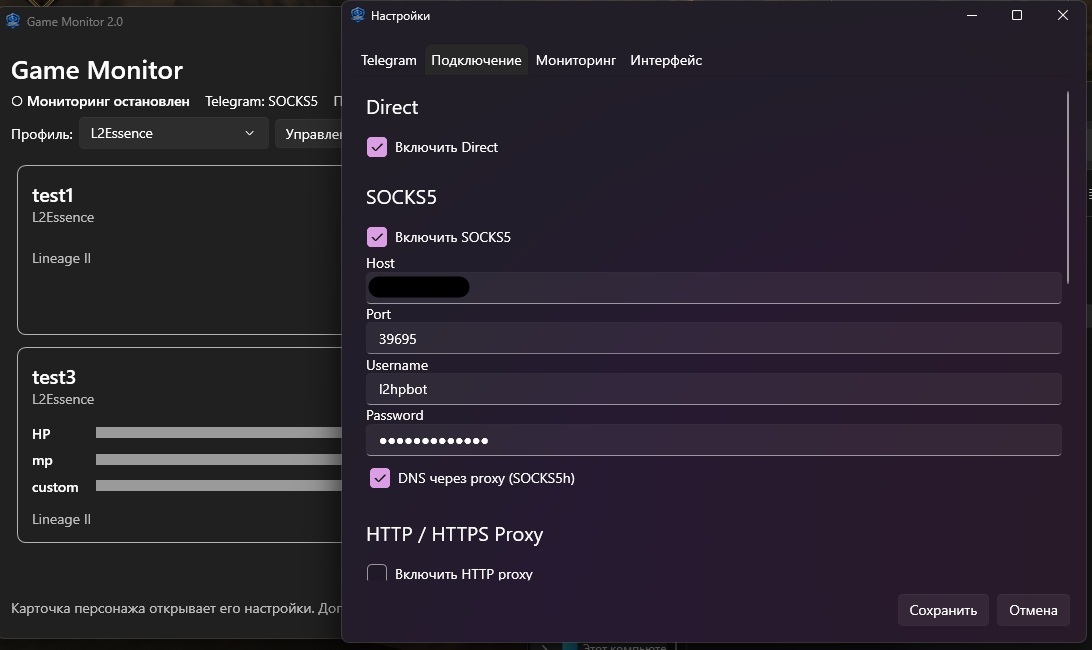
  • SOCKS5 / HTTP proxy support for Telegram
  • Russian and English interface
Screenshots

Application interface

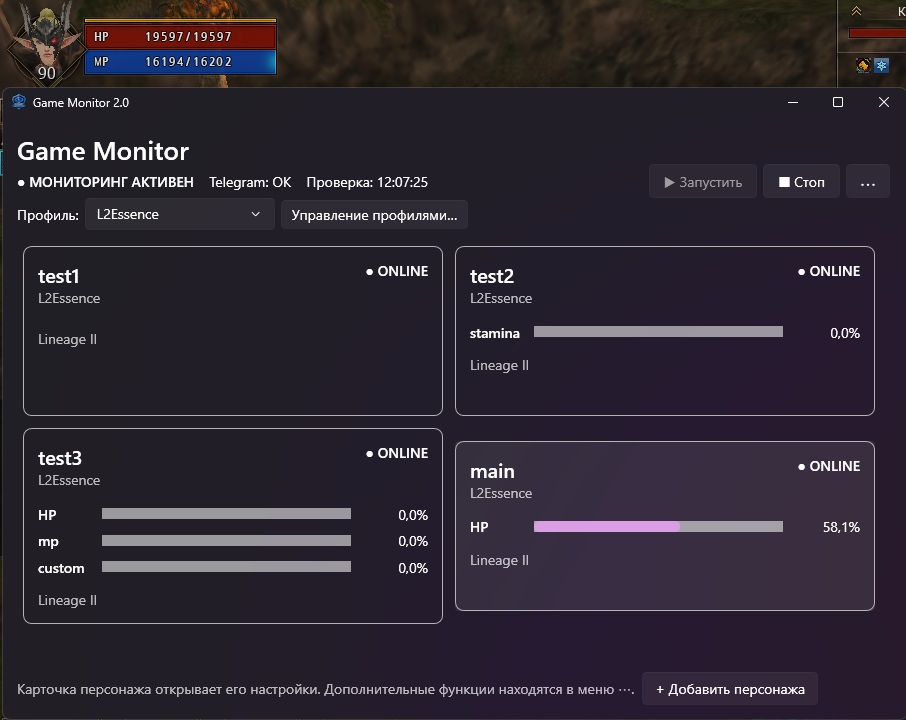
Game Monitor main window
Main window
Game Monitor character settings
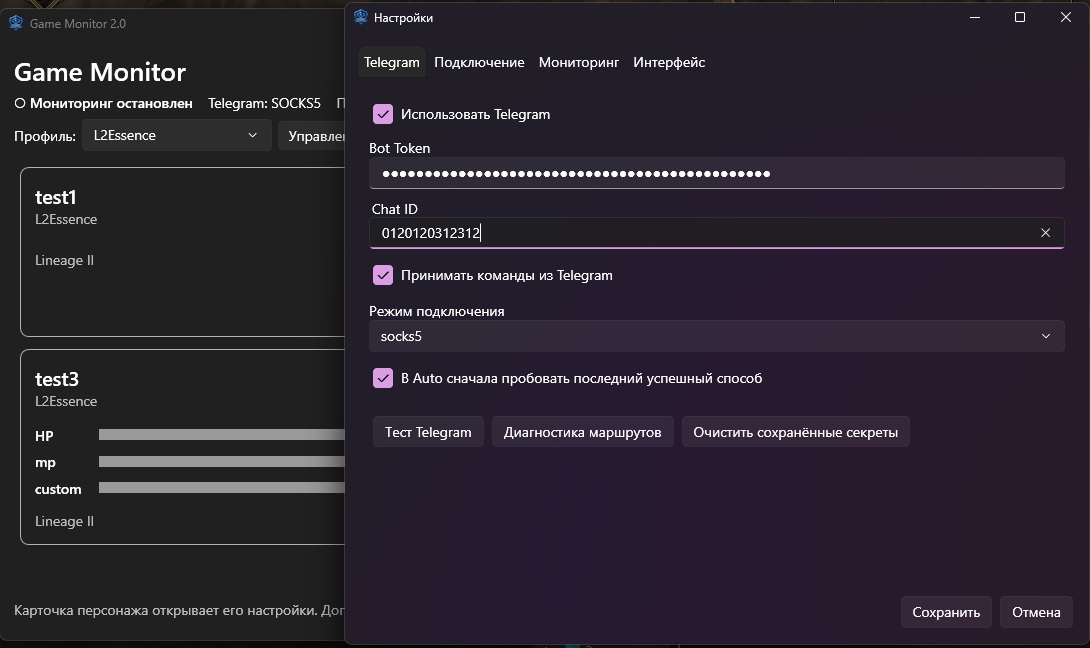
Telegram bot settings
Game Monitor indicator settings
Proxy settings
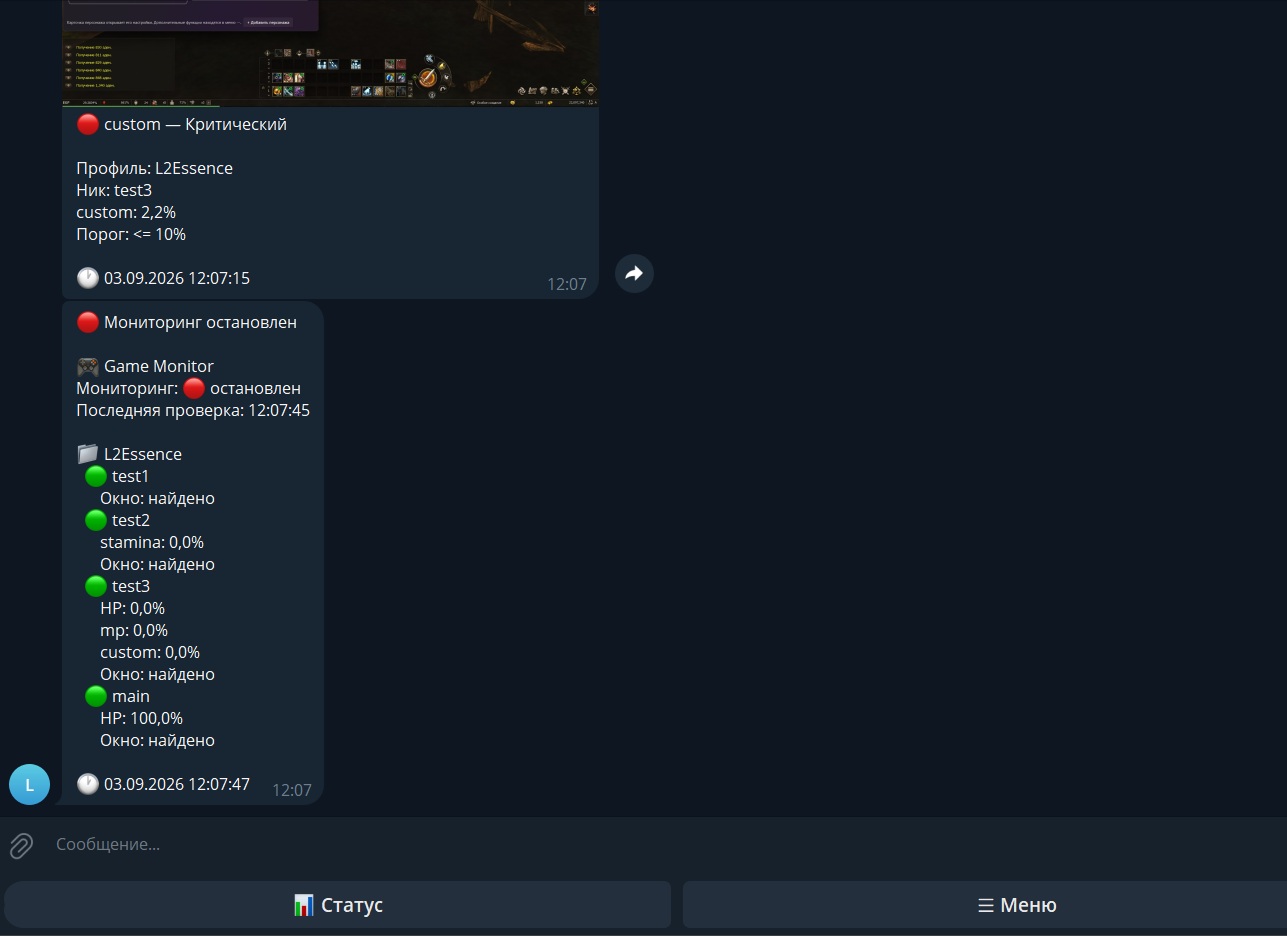
Game Monitor Telegram interface
Notifications and Telegram
What's new

Changelog

The latest version is always shown. Previous changes can be expanded when needed.

Game Monitor 2.0.4

Current
  • The English interface has been fully completed.
  • Added language selection Russian / English. Russian remains the default language.
  • The indicator settings window was redesigned — for BAR and COLOR_TRIGGER only the settings relevant to the selected type are now shown.
  • Improved internal localization checks before release builds.
More details
  • The main window, settings, profiles, characters, indicators, log, history, system messages, and Telegram interface have been translated.
  • For BAR only BAR settings and alert levels are shown.
  • For COLOR_TRIGGER only the color-match threshold settings are shown.
  • The indicator settings window is now more compact and unnecessary empty space has been removed.
Previous versions 2.0.3 · 2.0.2 · 2.0.1 · 2.0

Game Monitor 2.0.3

  • Added Russian and English language support.
  • The selected language is saved between launches.
  • The interface language can be switched without reinstalling the application.
  • Localization of system messages and Telegram notifications was started.

Game Monitor 2.0.2

  • Added indicator trigger direction selection:
    • ≤ less than or equal to
    • ≥ greater than or equal to
  • For BAR the default condition is ≤.
  • For COLOR_TRIGGER the default condition is ≥.
  • For example, you can now configure:
    • HP ≤ 10%
    • HP ≥ 50%
    • target color appearance ≥ 20%
  • Recovery and hysteresis logic automatically follows the selected condition direction.
  • Existing configurations remain compatible with the new version.

Game Monitor 2.0.1

  • Added built-in technical support via Telegram.
  • The “Technical Support” item is available in the ⋯.
  • Opening support from the application goes directly to the support bot.
  • Failure to open Telegram or a browser no longer crashes the application.
  • Added an additional support-link check during release builds.

Game Monitor 2.0

  • First full release of the version built with C# / WPF / .NET 10.
  • Monitoring of multiple game windows and characters.
  • Support for BAR and COLOR_TRIGGER indicators.
  • Select the monitored area and color directly from the game window image.
  • Multiple alert levels for indicators.
  • Telegram notifications, screenshots, and remote control.
  • SOCKS5 / HTTP proxy support for Telegram.
  • Detection of closed and frozen game windows.
  • Visual monitoring is paused when Windows is locked.
  • Bot Token and proxy passwords are protected with Windows DPAPI.
  • Self-contained Windows x64 build — no separate .NET installation required.
  • Obfuscated release binary.
  • Automated release audit before publishing.
Guide

Set up Game Monitor from scratch

The basic setup flow is simple: Telegram, profile, game window, indicators, and monitoring. Most steps only need to be completed once.

Telegram
Profile
Character
Indicators
Start
Telegram setup is a one-time step. When adding another character, you normally only need to create the character, select its game window, and configure the required indicators.
01 Complete setup and usage guide 10 steps from the first launch to active monitoring.
First launch and Telegram
1

Download and launch Game Monitor

Extract the archive to a convenient folder and run GameMonitor.exe.

Game Monitor requires Windows 10 x64 or Windows 11 x64. Windows 7 and Windows 8.1 are not supported. No additional components are required. Settings are stored in the current Windows user's profile:

%APPDATA%\GameMonitor\

You can change the interface language in Settings: Russian / English. Russian is used by default.

2

Create a Telegram bot

It is used for notifications, screenshots, and remote monitoring control.

  1. Open Telegram and find the official @BotFather bot.
  2. Send the command /newbot.
  3. Enter a bot name, for example My Game Monitor.
  4. Choose a username ending in bot, for example my_game_monitor_bot.
  5. Copy the Bot Token you receive, such as 123456789:AA....
  6. Open the new bot and press Start or send it any message.
Do not publish your Bot Token. It provides access to your bot. Game Monitor stores the token locally in a Windows DPAPI-protected secrets.dat file.
3

Get your Chat ID

The Chat ID tells Game Monitor which Telegram chat should receive messages.

  1. After sending a message to your bot, open:
    https://api.telegram.org/botYOUR_BOT_TOKEN/getUpdates
  2. Find the "chat" object and its "id" field in the response.
  3. The number in the id field is your Chat ID.
Example
{
  "message": {
    "chat": {
      "id": 123456789
    }
  }
}

Enter the Bot Token and Chat ID in Game Monitor's Telegram settings, then run the connection test.

Profile and game window
4

Create a profile

A profile groups characters by game, server, or any other structure that is convenient for you.

  1. Open Profile Management on the main screen.
  2. Click Add.
  3. Enter a clear name such as L2 Essence, WoW, or the server name.

A single profile can contain multiple characters. Each character has its own game window, indicators, and monitoring settings.

5

Add a character and select its window

Each character is linked to a separate Windows game window.

  1. Click Add Character and select the required profile.
  2. Enter the character name — it will be used in notifications.
  3. In the Game Window section, select a window from the list or use Pick by Click.
  4. When click selection starts, select the required window through the transparent overlay.
Game Monitor does not read game memory or inject into the game process. Window binding is used only to capture the image of a specific client.
Indicators
6

Add an indicator

You can monitor HP, MP, and any other suitable visual UI elements.

  1. In the character editor, go to Indicators and click + Add Indicator.
  2. Enter a name such as HP, MP, Stamina, or anything else.
  3. Select the type: BAR for a percentage-based fill bar; COLOR_TRIGGER for detecting the appearance or disappearance of a target color.
  4. Click Select Area from Window Snapshot and select only the required UI element.
The settings window automatically shows only the options relevant to the selected type: BAR displays bar settings and alert levels, while COLOR_TRIGGER displays color-match threshold settings.
7

Choose a color and test the indicator

Game Monitor determines indicator state by matching the selected color.

  1. The easiest method is Eyedropper from Window: pick a distinctive color directly from the UI element.
  2. You can also use Color from Area Center when appropriate.
  3. Tolerance allows small RGB differences, which helps with gradients, glow, and brightness changes.
  4. Click Test Indicator and verify that the result matches the actual state.

If the reported percentage is inaccurate, select the area more precisely, choose a more distinctive color, or adjust the tolerance.

8

Configure BAR alert levels and condition direction

A BAR indicator can have multiple independent alert levels.

≤ less than or equal to Normally used when HP or MP drops. This is the default condition for BAR.
≥ greater than or equal to Useful when an event should trigger as a value rises above the configured threshold.

Examples:

Low HP≤ 30%
Critical HP≤ 10%
High resource≥ 90%

When a threshold is crossed, Game Monitor sends a notification and remembers the active state. Recovery and hysteresis automatically follow the selected direction, so the same event is not sent on every check.

9

Configure COLOR_TRIGGER

Use it for icons, buffs, warnings, and other color-based UI states.

Select an area and color in the same way as for BAR. Then set the percentage of pixels that should match the selected color and choose the condition direction.

≥ 20% Trigger when the target color appears in the selected area. This is the default direction for COLOR_TRIGGER.
≤ 5% Trigger when the target color has almost disappeared from the selected area.

For COLOR_TRIGGER, the percentage represents the share of pixels matching the selected color, not the fill level of a bar.

Start monitoring
10

Start monitoring

After configuring characters and indicators, return to the main screen.

  1. Click Start.
  2. Indicator states will begin updating on the character cards.
  3. When a threshold triggers, a window disappears, an image freezes, or another configured event occurs, Game Monitor sends a Telegram notification.
  4. From Telegram you can request status and screenshots, open the character list, and start or stop monitoring.

If something does not work

Incorrect percentage

Select the area more precisely, choose a more distinctive color, and adjust tolerance if necessary.

No Telegram messages

Check the Bot Token and Chat ID, then run the Telegram connection test in Settings.

Game window not found

Refresh the window list or select the required window again using click selection.

Technical details

How Game Monitor works

Game Monitor does not read game memory, inject DLLs, or attach to the game process. Its core principle is analyzing the normal image of the selected Windows window.

For each bar, the application analyzes a configured image area and determines fill level using the selected color and tolerance. The user defines alert levels such as “low” and “critical”, along with recovery thresholds.

Each game window is bound to a separate character. Character and profile settings are independent, so multiple clients and even different games can be monitored at the same time.

Additional capabilities

  • WPF / .NET 10 · Windows 10/11 x64
  • Multi-window monitoring
  • Freeze detection based on image changes
  • Detection of closed/missing windows
  • Pause visual monitoring when Windows is locked
  • Telegram notification aggregation without repeated spam
  • DPAPI protection for Telegram tokens and proxy passwords
  • Local configuration in %APPDATA%\GameMonitor
  • Obfuscated release binary
  • Automated release audit before publishing
Download

Game Monitor 2.0.4

For Windows 10 x64 and Windows 11 x64. Russian / English. No additional components required.

Download ZIP
Feedback

Contact the author

Use the Telegram support bot. The author's personal Telegram account is not published: the bot creates a request and delivers replies back to your chat.

Write a message
Support the project

If you find the application useful

Game Monitor is free to use. If you'd like to support the project, you can use one of the options below.

USDT TRC20 TT4uvaLg1QqKeLLqW25UmBBkREdBX5sD7q
BTC 16TMyb5y4NiL1Lg3tkWDZQwDiqriwn1zgS
Gram (TON) UQCI9R-AN251d0RKA_j3TJMaWKEKS58cXs08Qp7_IGgNhEMZ
Bank card transfer

Bank card details for a transfer are available on request via gm@bornik.ru or the Telegram support bot @GameMonitor_Support_bot.